这里分享一个Speedtest CLI一键测速脚本、Speedtest CLI一键测速安装脚本,Speedtest CLI是Speedtest.net旗下开源的测速工具,使用此脚本可以一键测试离服务器最近节点的网络速度,同时还可以一键获取离服务器最近的10个有效测速节点等等。Speedtest CLI一键测速脚本支持Centos、Ubuntu、Debian、Fedora、Redhat、RockyLinux等系统。
Speedtest.net是目前比较好的一家网络测速网站,拥有全球众多的测速节点,同时很多Linux一键测速脚本也都是调用了Speedtest.net的测速节点,包括目前常用的Linux一键测速脚本有:bench.sh一键测速脚本更新_可以一键测试Linux服务器基本信息/硬盘IO/国内三网香港新加坡日本上下行速度、superspeed.sh修复版(一键测试Linux服务器到电信联通移动上传下载速度脚本)、Linux一键测速脚本SuperBench.sh修复版(国内外SpeedTest节点测速、IP流媒体解锁、回程路由追踪及Geekbench CPU性能测试),这些脚本调用的都是Speedtest.net的测速节点。

一、Speedtest CLI一键测速脚本安装命令
1、Centos、Fedora、Redhat、RockyLinux系统安装与卸载Speedtest CLI的命令
#Speedtest CLI在Centos、Fedora、Redhat、RockyLinux系统中的安装命令-www.zhuji999.com:
sudo yum install curl
curl -s https://packagecloud.io/install/repositories/ookla/speedtest-cli/script.rpm.sh | sudo bash
sudo yum install speedtest

#Speedtest CLI在Centos、Fedora、Redhat、RockyLinux系统中的卸载命令-www.zhuji999.com:
sudo rm /etc/yum.repos.d/ookla_speedtest-cli.repo
sudo yum remove speedtest
2、Ubuntu、Debian系统安装与卸载Speedtest CLI的命令
#Speedtest CLI在Ubuntu、Debian系统中的安装命令-www.zhuji999.com:
sudo apt install curl
curl -s https://packagecloud.io/install/repositories/ookla/speedtest-cli/script.deb.sh | sudo bash
sudo apt install speedtest

#Speedtest CLI在Ubuntu、Debian系统中的卸载命令-www.zhuji999.com:
sudo rm /etc/apt/sources.list.d/ookla_speedtest-cli.list
apt remove speedtest
二、Speedtest CLI一键测速命令使用教程
1、一键测试服务器就近节点速度命令:
通过上面的命令,在对应的系统当中安装“Speedtest CLI”后,可以“speedtest”命令来测试服务器最近节点的速度。
#一键测试服务器就近节点速度命令-www.zhuji999.com:

speedtest
测速结果如下:

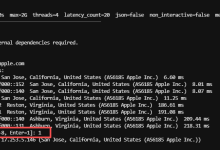
2、一键列出服务器就近的10个测速节点命令:
speedtest -L
效果如下图:

3、一键测试服务器到指定节点的命令:
下面命令当中的“id”用测速节点的id代替。如果我们指定测试如上图中的最后一个节点速度,那么命令是“speedtest -s 13965”.
speedtest -s id
如下图是测试指定的13965测速节点的测速结果。

4、列出Speedtest CLI帮助信息的命令:
speedtest -h
帮助信息如下,不知道的自己复制到在线翻译去翻译一下:
[root@customer ~]# speedtest -h
Speedtest by Ookla is the official command line client for testing the speed and performance of your internet connection.

Version: speedtest 1.2.0.84

Usage: speedtest []
  -h, --help                        Print usage information
  -V, --version                     Print version number
  -L, --servers                     List nearest servers
  -s, --server-id=#                 Specify a server from the server list using its id
  -I, --interface=ARG               Attempt to bind to the specified interface when connecting to servers
  -i, --ip=ARG                      Attempt to bind to the specified IP address when connecting to servers
  -o, --host=ARG                    Specify a server, from the server list, using its host's fully qualified domain name
  -p, --progress=yes|no             Enable or disable progress bar (Note: only available for 'human-readable'
                                    or 'json' and defaults to yes when interactive)
  -P, --precision=#                 Number of decimals to use (0-8, default=2)
  -f, --format=ARG                  Output format (see below for valid formats)
      --progress-update-interval=#  Progress update interval (100-1000 milliseconds)
  -u, --unit[=ARG]                  Output unit for displaying speeds (Note: this is only applicable
                                    for ‘human-readable’ output format and the default unit is Mbps)
  -a                                Shortcut for [-u auto-decimal-bits]
  -A                                Shortcut for [-u auto-decimal-bytes]
  -b                                Shortcut for [-u auto-binary-bits]
  -B                                Shortcut for [-u auto-binary-bytes]
      --selection-details           Show server selection details
      --ca-certificate=ARG          CA Certificate bundle path
  -v                                Logging verbosity. Specify multiple times for higher verbosity
      --output-header               Show output header for CSV and TSV formats

 Valid output formats: human-readable (default), csv, tsv, json, jsonl, json-pretty

 Machine readable formats (csv, tsv, json, jsonl, json-pretty) use bytes as the unit of measure with max precision

 Valid units for [-u] flag:
   Decimal prefix, bits per second:  bps, kbps, Mbps, Gbps
   Decimal prefix, bytes per second: B/s, kB/s, MB/s, GB/s
   Binary prefix, bits per second:   kibps, Mibps, Gibps
   Binary prefix, bytes per second:  kiB/s, MiB/s, GiB/s
   Auto-scaled prefix: auto-binary-bits, auto-binary-bytes, auto-decimal-bits, auto-decimal-bytes